Crazy Robotaxi
Crazy Robotaxi is an interactive FlashDreams v2 driving application. Drive a taxi through authored maps, collect fares, race against the clock, or explore freely using a keyboard, gamepad, or steering wheel.
Crazy Robotaxi's game engine simulates vehicle motion, uses PhysX to resolve collisions, and applies rules for fares, checkpoints, and scoring. Ludus Renderer converts the simulated road layout and actor poses into semantic HD-map images: lane markings, road boundaries, and actor boxes.
The OmniDreams AI world model uses those images, a text prompt, and visual history to generate the detailed street view. Crazy Robotaxi draws HUD text and navigation markers over that video using conventional rendering; their state and placement come from the game engine.
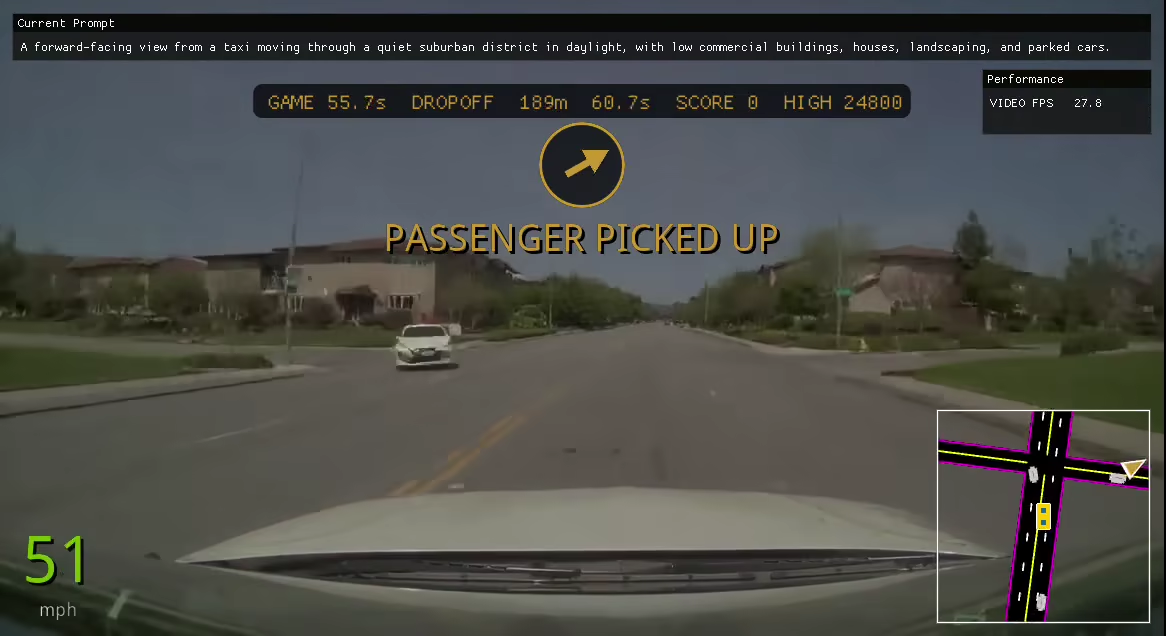
Quick Start:
Controls
Open CONTROLS from the mode menu, then choose KEYBOARD, GAMEPAD, or
WHEEL. Each gameplay action has primary and secondary binding slots. Select
a slot and press the desired key or device control. Escape is a valid keyboard
binding. Backspace, Delete, or CLEAR unbinds the slot, while CANCEL
stops capture without changing it. Reusing an existing binding swaps it with the
previous slot. SAVE writes the current device without leaving its page, and
RESET TO DEFAULTS affects only that device.
Bindings are stored as three independent sparse YAML documents under
$XDG_CONFIG_HOME/crazy-robotaxi/controls/, or
~/.config/crazy-robotaxi/controls/ when XDG_CONFIG_HOME is unset:
keyboard.yaml, gamepad.yaml, and wheel.yaml. Use the CLI-only
--controls-dir PATH option to select another directory. Control changes take
effect after restarting the current application process.
Keyboard
| Control | Action |
|---|---|
W or Up Arrow |
Drive forward |
S or Down Arrow |
Brake, then reverse after stopping |
A or Left Arrow |
Steer left |
D or Right Arrow |
Steer right |
Space |
Apply the handbrake and cancel throttle |
R |
Restart the current game |
H |
Hide or show the HUD control tooltips |
M |
Toggle the model's HD-map conditioning view |
Escape |
Return to the previous menu, then exit from the mode screen; also the default gameplay return-to-menu binding |
Enter |
Submit the focused leaderboard name (fixed) |
Menu choices and leaderboard buttons can also be clicked with the mouse.
Controller
The Gamepad Controls screen uses one button-label convention at a time. Set
game.gamepad_button_style to Xbox, PlayStation, or Nintendo Switch in
the Options screen or user-authored settings YAML. Xbox labels are the default.
| Control | Action |
|---|---|
| Left stick | Steer |
Right trigger (RT by default) |
Throttle |
Left trigger (LT by default) |
Brake, then reverse after stopping |
| Menu button | Restart the current game |
| Steering wheel and pedals | Use normalized steering, throttle, and brake input |
A connected gamepad or wheel takes precedence over keyboard driving input. Menu navigation remains mouse and keyboard controlled. Gamepad and wheel handbrake, control-hint, HD-map, and live-edit actions are supported. The gamepad supplies default bindings for them; the wheel leaves them unbound by default. Wheel bindings use the semantic steering, throttle, brake, clutch, and button values supplied by the runtime; physical device calibration remains a runtime concern.
Demo Arguments
| Argument | Description |
|---|---|
--config PATH |
Load user settings from a specific YAML file. |
--controls-dir PATH |
Load keyboard, gamepad, and wheel bindings from a specific directory. |
--map PATH |
Load an authored .robotaxi.yaml map. |
--width N, --height N |
Set generated-frame dimensions. |
--display-width N, --display-height N |
Set presentation dimensions independently of generation. |
--force-map-recompile |
Recompile the selected map before launch. |
--ui, --no-ui |
Enable or disable the HUD. Headless runs require --game-mode, --map, and --total-blocks. |
--device DEVICE |
Select the application device. |
--total-blocks N |
Stop after this many generated blocks. |
--game-time-s SECONDS |
Override the taxi-mode time limit. |
--seed N |
Set both gameplay and model seeds. |
--game-seed N, --model-seed N |
Set gameplay and model seeds independently. |
--high-scores PATH |
Store taxi-mode high scores at a specific path. |
--game-mode {taxi,race,free-roam} |
Start directly in taxi, race, or Free-Roam mode. |
--visual-flare, --no-visual-flare |
Enable or disable visual flare. |
--race-course NAME |
Select a race course from the active map. |
--race-times PATH |
Store race times at a specific path. |
--compile, --no-compile |
Enable or disable model compilation. |
--profile-pipeline |
Log model-loop timing and real-time budget diagnostics. |
--prewarm-blocks N |
Generate hidden neutral blocks before presentation. Default: 8; 0 disables prewarming. |
--profile-input-latency [PATH] |
Show input diagnostics and write a chunk-lifecycle trace. |
--show-fps, --no-show-fps |
Show or hide generated-video FPS in the HUD. |
Live-edit flags are described in Optional live-edit abilities.
Options and user configuration
The mode menu has CONTROLS and OPTIONS buttons. The Options screen is generated from the same typed settings tree used at startup, with pages for game, model, renderer, presentation, live edit, runtime, and diagnostics. SAVE atomically updates the user YAML without leaving the screen. EXIT returns to the mode menu and changes to EXIT WITHOUT SAVING while the draft is dirty. RESET TO DEFAULTS resets the draft. HUD and presentation settings apply when saved. Other startup settings display RESTART REQUIRED FOR SETTINGS TO TAKE EFFECT because they need a new process.
By default, settings are loaded from
$XDG_CONFIG_HOME/crazy-robotaxi/config.yaml, or
~/.config/crazy-robotaxi/config.yaml when XDG_CONFIG_HOME is unset. The file
is created only after the first save. Use --config PATH to select another
user-authored file. YAML values are sparse overrides on the selected runner's
defaults, and retained comments survive Options saves. Explicit application CLI
arguments override YAML for the current run without rewriting the saved value;
the Options screen labels affected fields.
For example:
schema_version: 1
game:
  gamepad_button_style: PlayStation
  taxi:
    seed: 1234
    rules:
      global_time_s: 90.0
model:
  pipeline:
    diffusion_model:
      seed: 5678
presentation:
  width: 1920
  height: 1080
  show_fps: true
live_edit:
  weather:
    enabled: true
Mode, map, and race-course selections are intentionally CLI-only and do not
appear in the YAML or Options screen. Passing --game-mode, --map, and
--race-course skips their corresponding startup menus; omitted selections
remain in the normal menu flow. Model diffusion and gameplay seeds are
independent. Selecting mystery items automatically enables style editing, while
rain or snow items automatically enable weather editing.
Race mode
Bundled maps can define ordered race courses. Start with the included raceway
and select the grand-prix course in the menu:
uv run flashdreams-run-v2 DEMO_MODEL_SLUG --mode native-window -- \
  --map apps/crazy_robotaxi/crazy_robotaxi/maps/flashdreams_raceway.robotaxi.yaml \
  --game-mode race
Race times are stored per map and course. Use --race-times PATH to choose a
different leaderboard file.
Free-Roam mode
Choose FREE-ROAM from the mode menu, then choose a map. Free-Roam keeps driving and enabled live-edit abilities available without fares, checkpoints, a timer, or a score. No race-course selection is needed.
Optional live-edit abilities
Live-edit features are disabled by default. Enable them on the LIVE EDIT Options page or with application arguments:
uv run flashdreams-run-v2 DEMO_MODEL_SLUG --mode native-window -- \
  --live-edit-coins \
  --live-edit-items \
  --live-edit-weather \
  --live-edit-style \
  --live-edit-obstacle \
  --live-edit-dynamic-prompts
When enabled, C toggles coins, K cycles style skins, V cycles weather,
and O spawns a crossing obstacle. The same enabled actions appear as buttons
in the live-edit HUD card alongside frame-aligned ability status. Weather cannot
change while a non-base style is active. When enabled, style mode downloads
missing model assets during application startup and caches them under
artifacts/crazy_robotaxi/live_edit. Explicit checkpoint paths skip the
corresponding downloads.
Dynamic prompts append selected descriptions of the current road, upcoming map node and curve, and taxi motion to the active prompt. Choose which fragments to include in LIVE EDIT → Dynamic Prompts in Options. Complete combined prompts are encoded and retained lazily, so the first visit to a new combination may pause briefly and sessions with many unique combinations retain more GPU memory.
Style, weather, active dynamic prompts, and guided obstacles need the Python transformer hooks. When one of those features is enabled, the application automatically disables native DiT acceleration and logs the reason. Native VAE acceleration and the remaining performance configuration stay enabled; pixel-only features such as coins, items, and unguided obstacles keep native DiT acceleration.
Authored maps
Maps are strict semantic .robotaxi.yaml documents. Validate or preview them
without loading a model:
uv run --package crazy-robotaxi crazy-robotaxi-map validate path/to/city.robotaxi.yaml
uv run --package crazy-robotaxi crazy-robotaxi-map compile path/to/city.robotaxi.yaml
uv run --package crazy-robotaxi crazy-robotaxi-map preview \
  path/to/city.robotaxi.yaml --output city.svg
uv run --package crazy-robotaxi crazy-robotaxi-map preview-spawn \
  path/to/city.robotaxi.yaml --spawn taxi_start --output taxi_start.png
Each spawn can define both a full prompt for normal play and a shorter
prompt_context base for active dynamic prompts. Selected fragments are
appended to that base, falling back to prompt when prompt_context is absent.