HandDreams
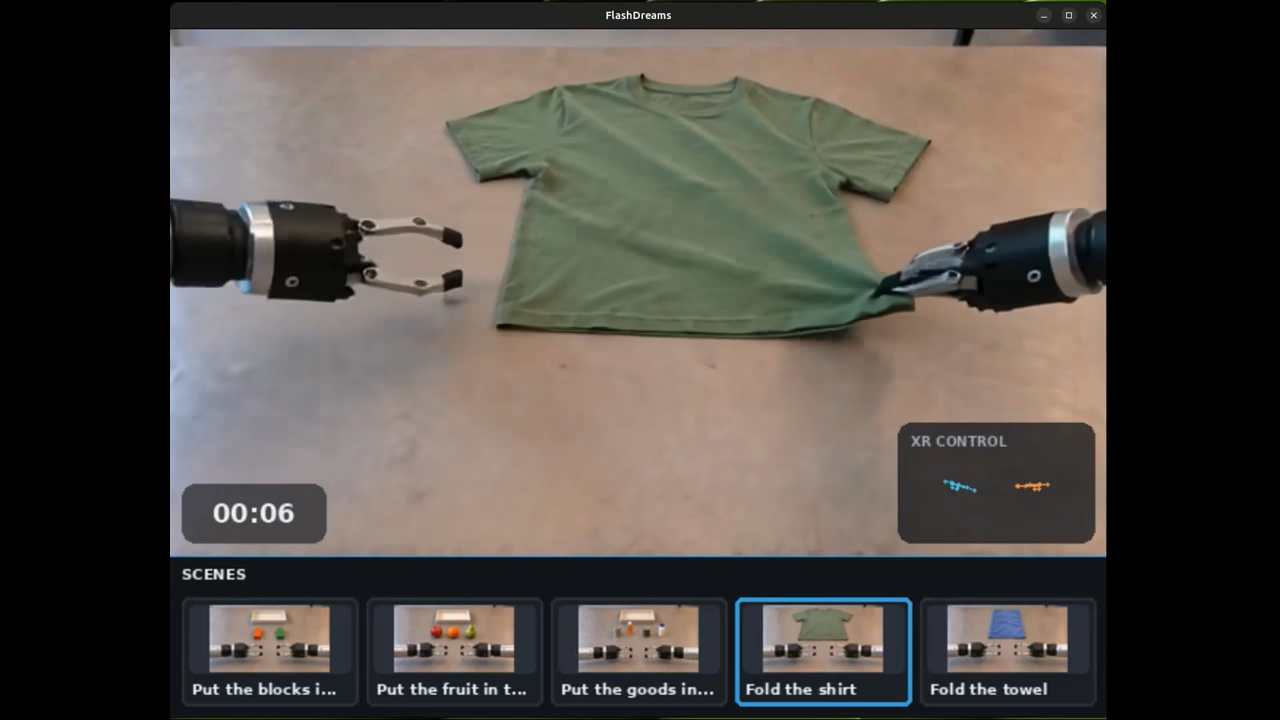
Control generated robot hands with virtual or physical controllers. No physical robot is controlled.
Quick Start
Controls
After connecting virtual controllers or physical controllers, click a scene thumbnail or use arrow keys → Enter. With virtual controllers, hold either Trig until the progress bar fills, then release both triggers to begin. With physical controllers, complete calibration. Scene changes repeat calibration.
| Input | Action |
|---|---|
| Controller position/rotation | Move the corresponding hand. |
| Trig / Index Trigger | Squeeze to close the gripper; release to open. |
| Escape | Return to scene selection and start a fresh rollout. |
XR CONTROL shows controller input; the generated pose can differ. The GA checkpoint can sometimes open or close grippers without matching input.
Demo Arguments
| Argument | Default | Purpose |
|---|---|---|
--accept-eula and --isaac-teleop-accept-eula |
Unset | Specify that you have already accepted the 'Isaac Teleop/CloudXR eula' terms. Accept via the canonical launch.py setup-isaac-teleop command. |
--position-gain |
1.2 |
Scale controller translation. |
--control-fps |
Scene FPS | Set controller sampling and model temporal conditioning, independently of UI refresh. |
--sample-dir PATH |
Downloaded scenes | Use a server folder with up to five scene subdirectories, each containing first_frame.jpg and scene.json. |
--scene-path PATH |
Unset | Load one scene folder (containing first_frame.jpg and scene.json) at startup. |
Setup Isaac Teleop
Run from flashdreams root:
uv run --no-project --python 3.12 python \
  integrations_v2/cosmos3_nano_sim_bimanual/apps/handdreams/launch.py setup-isaac-teleop
Review the displayed Isaac Teleop/CloudXR terms and type yes if you accept.
You may only use --accept-eula and --isaac-teleop-accept-eula for this demo if you have already accepted the 'Isaac Teleop/CloudXR eula' terms.
Connect Virtual Controllers
Ensure you have completed Isaac Teleop setup on your server that will run the HandDreams demo.
- Open
http://<server-address>:8081/and wait for scene selection. - Click Isaac Teleop Web Client: Open Link. Keep both tabs open.
- Verify the certificate link points to your server's
https://<server-address>:48322/, accept its development certificate, and return to Teleop. - Keep the default settings and click CONNECT. Both controller panels should appear, and the viewer should report both tracked.
- Select a scene, hold either Trig until the progress bar fills, then release both triggers. Move a controller to move its generated hand.
Use a trusted network where viewer TCP 8081, Teleop HTTPS 48322, and WebRTC
media traffic can reach the server. Stop with Ctrl+C.
Connect Physical Controllers
Initial Setup
Ensure you have completed Isaac Teleop setup on your server that will run the HandDreams demo. Ensure that if you plan to use a laptop-connected Quest, you must also complete the setup there as well.
Run all future launch commands from the flashdreams repository root.
First, connect a Quest headset by USB to your server or a Ubuntu laptop. On the connected machine, install ADB and coturn:
sudo apt install adb coturn
adb devices
Enable Quest Developer Mode and approve USB debugging in the headset. Run
adb devices again and confirm the headset shows as device, not
unauthorized. Keep Quest Wi-Fi connected with an IPv4 address; an offline
access point works. Controller data travels over USB; watch generated video
in the demo viewer.
Move on to Headset Connected to the Server or Headset Connected to a Laptop depending on where the headset is connected.
Headset Connected to the Server
Connect and authorize the Quest before launching anything on the server.
For a native window view of the hands-demo, run from the server's graphical desktop:
env -u QUEST_META_PIN uv run --no-sync flashdreams-run-v2 handdreams \
  --mode native-window \
  --isaac-teleop-accept-eula \
  --quest-accept-server-certificate

# Add `--quest-device <SERIAL>` if needed to select a specific headset.
# `env -u QUEST_META_PIN` removes legacy PIN setting for the life-time of `flashdreams-run-v2`.
# `--quest-accept-server-certificate` allows quest to accept a CloudXR development certificate. Relay TLS verification stays enabled.
For WebRTC output use the following command:
SERVER_IP=127.0.0.1  # Use the server's reachable LAN IPv4 for a remote browser
env -u QUEST_META_PIN uv run --no-sync flashdreams-run-v2 handdreams \
  --mode webrtc --host "$SERVER_IP" --port 8081 \
  --controller-host "$SERVER_IP" \
  --isaac-teleop-accept-eula \
  --quest-accept-server-certificate

# Use the server's LAN IPv4 for `SERVER_IP`.
# Connect to `http://<SERVER_IP>:8081/`.
# The headset browser connects automatically; do not connect a virtual client.
Continue with calibration.
Headset Connected to a Laptop
For native output on the server, change its mode to native-window but retain
--controller-host "<SERVER_IP>"; the laptop command is unchanged.
With a SERVER_IP and PORT pair that is reachable by your laptop, on the server, run either:
1. [For Browser View On Laptop/Server Of Demo] The WebRTC command in the Headset Connected to the Server section above
2. [For Native Window View On Server Of Demo] The native window command in the Headset Connected to the Server section above. Add --controller-host "$SERVER_IP" to the native-window command.
With ssh/scp, a verified server host key, and key/agent login, check that
this succeeds without a password prompt:
ssh -o StrictHostKeyChecking=yes -o BatchMode=yes "<USER>@<SERVER_IP>" true
On your laptop, start the laptop client:
env -u QUEST_META_PIN uv run --no-project --python 3.12 python \
  integrations_v2/cosmos3_nano_sim_bimanual/apps/handdreams/launch.py remote-vr \
  --server "<USER>@<SERVER_IP>" \
  --accept-eula \
  --accept-server-certificate

# `--accept-server-certificate` allows the laptop to accept a CloudXR development certificate from the server.
This command will prepare controller dependencies, copy credentials, and copy web assets
over SSH to your laptop; model weights remain on the server. Your laptop needs direct access to
server TCP 8445 since SSH is not setup to tunnel its connection.
You may now open http://<SERVER_IP>:8081/ in your browser.
Continue with calibration.
Physical-Controller Calibration
- Press the headset's power button when prompted to wake it. Clear any passcode or privacy screen and approve immersive-VR and local-network permissions if requested.
- In the demo viewer, click a scene thumbnail or use arrow keys → Enter.
- Hold the controllers side by side at the same height. Squeeze both index triggers fully for 1 second, until gray guides appear.
- Release both triggers and match the guides with both claws open. Hold the aligned pose for 1 second to start generation, then move the controllers to control the hands.
Press keyboard B in the viewer to retry a server-attached Quest, then wake
the headset when prompted. For a laptop Quest, stop and restart remote-vr.
Stop both the server and laptop client with Ctrl+C; cleanup puts the managed
headset to sleep. Closing only the viewer tab leaves the server running.
You should now be able to control the hands with the physical controllers.
Scene Data
The demo downloads Fold the T-shirt, Fold the shorts, and Open the tissue box from AgiBotWorld-Beta using your Hugging Face credentials. Scene data is not bundled with the demo.
Troubleshooting
- Virtual controller keeps sliding: in the Teleop toolbar, click the game-controller icon to switch to hands, then the hand icon to switch back. Confirm both controllers are tracked and reselect the scene if needed.
- No connection: check the server address, development certificate, browser local-network permission, and WebRTC/firewall connectivity.
- Gripper drift or degrading video: press Escape and select the scene again for a fresh rollout.